Share sign-ins across Spaces with Sub-Spaces
Every Space starts with sign-ins of its own. A Sub-Space shares another Space's instead: it browses with that Space's session while keeping its own tabs, folders and look. Use Sub-Spaces when several Spaces should be signed in to the same accounts, such as a Space for each client on one work account, or a Space for each class on one school account.
A Space and its Sub-Spaces form a group. The Space that leads it is the group's primary.
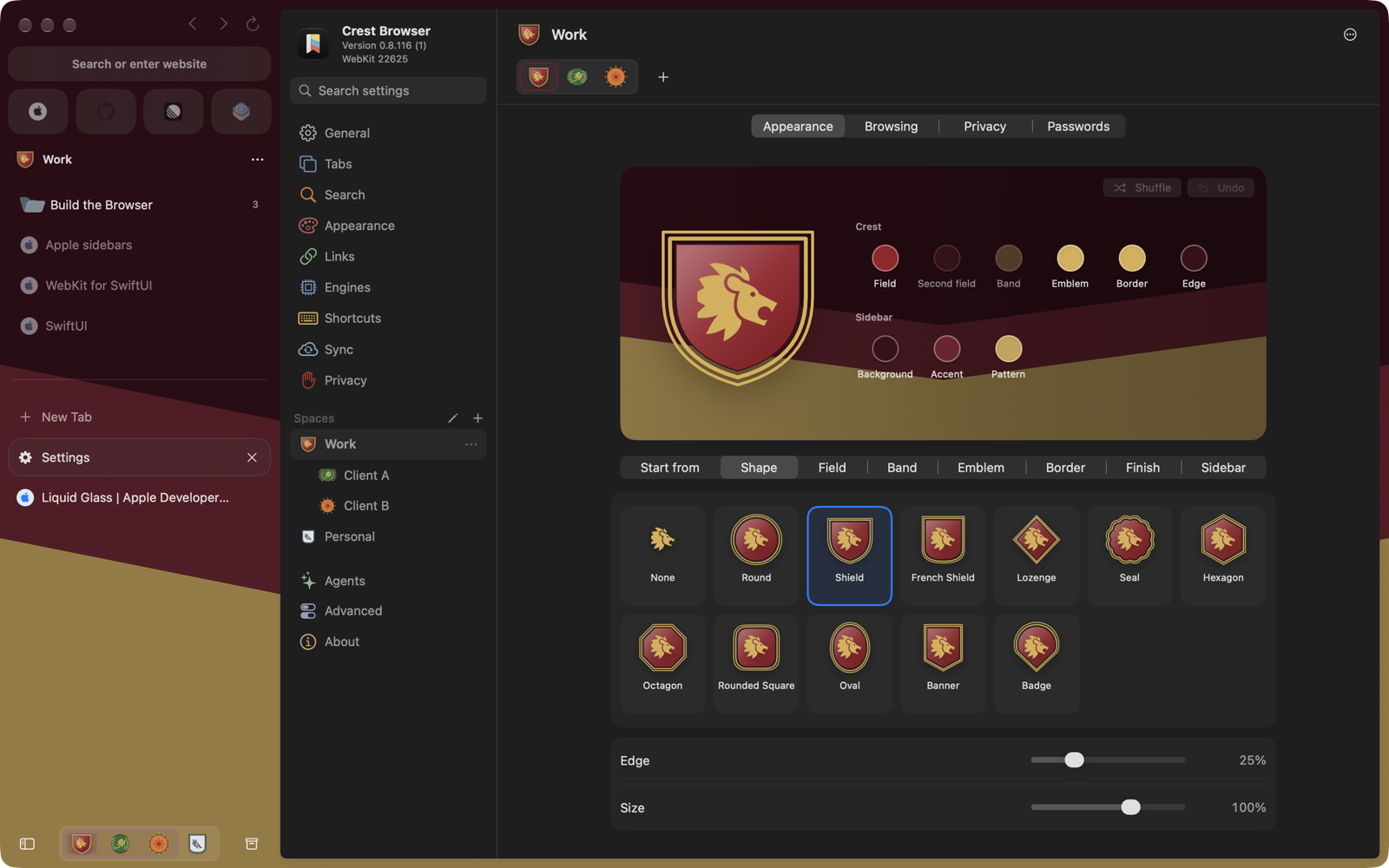
What a group shares
Every Space of a group uses the same:
- Sign-ins, cookies, caches and other website data
- History
- Crest Passwords
- Extensions on Mac
- Site permissions and content-blocking choices
- Lock, and whether coding agents may use it
Each Space keeps its own:
- Current, saved and archived tabs, folders and Split View groups
- Name, crest, colors and sidebar
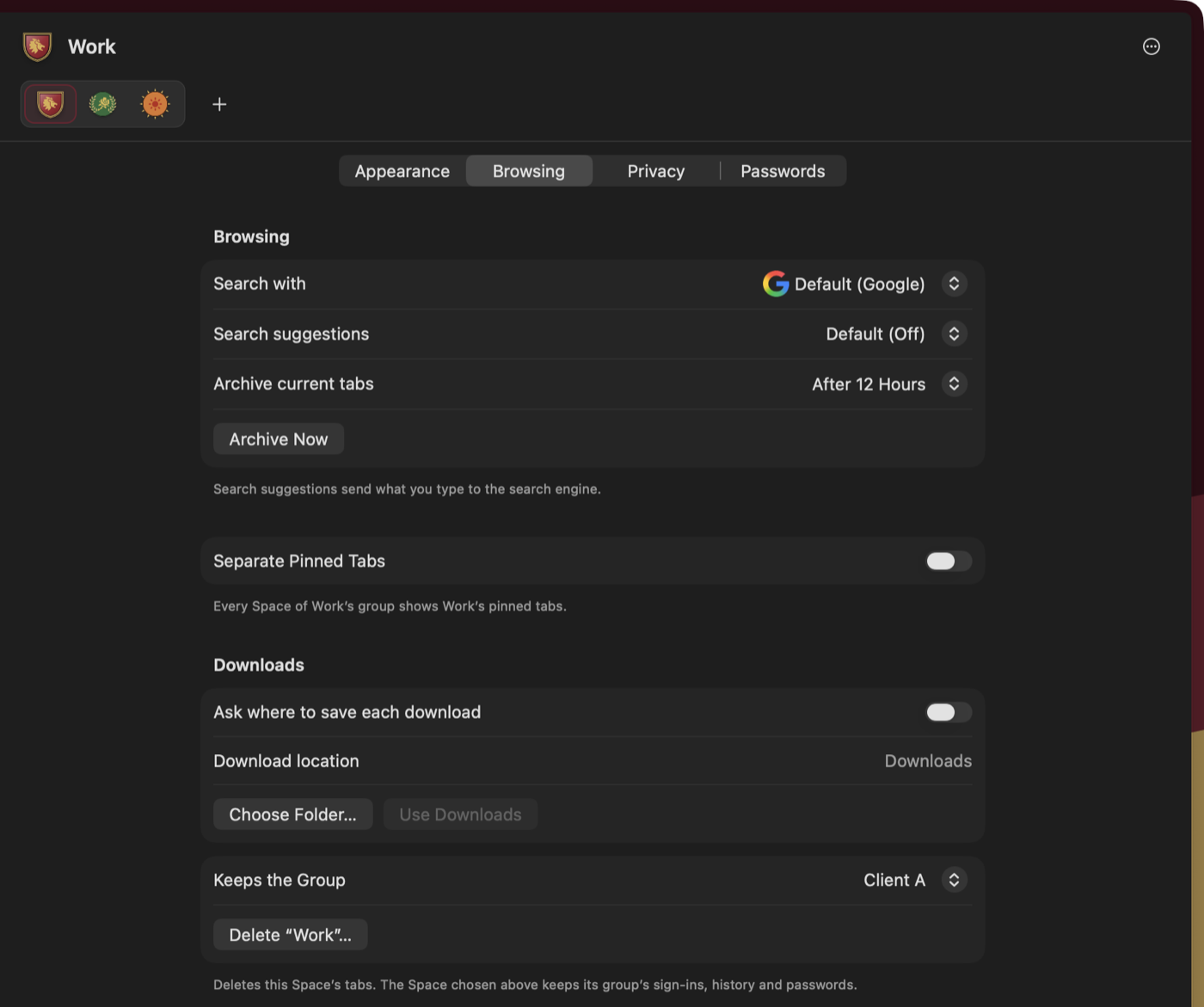
- Browsing settings, such as its search engine and download folder
Settings that a group shares say so at the end of their page, for example "Shared by Work's Sub-Spaces."
Pinned tabs
The Spaces of a group show their primary's pinned tabs, and one pinned tab opens the same page in each. To give each Space pinned tabs of its own, turn on Separate Pinned Tabs on the Browsing page of any Space in the group. The switch applies to the whole group.
Make a Sub-Space
On Mac, open Settings and right-click a Space in the sidebar, or open the … menu on its page, then choose New Sub-Space. You can also click + after the crests on a group's page, or right-click an empty part of the browser sidebar. The new Sub-Space copies the Space's look and settings, starts with one Start Page tab, and opens on its own page in Settings.
On iPhone and iPad, open Settings → Spaces, touch and hold a Space, then choose New Sub-Space.
Add an existing Space to a group
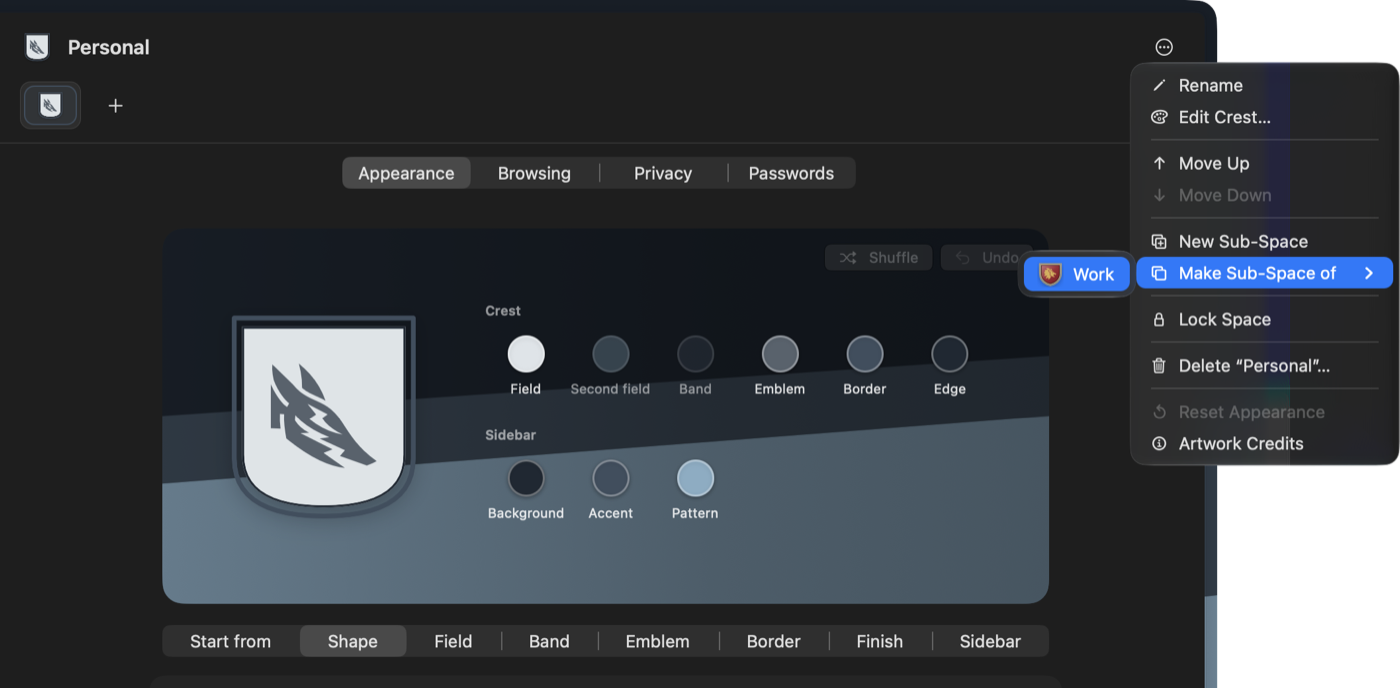
Right-click the Space in the Settings sidebar, or open the … menu on its page, choose Make Sub-Space of, then choose the group. On Mac you can also drag the Space in the Settings sidebar onto another Space, or among a group's Sub-Spaces. On iPhone and iPad, touch and hold the Space in Settings → Spaces.
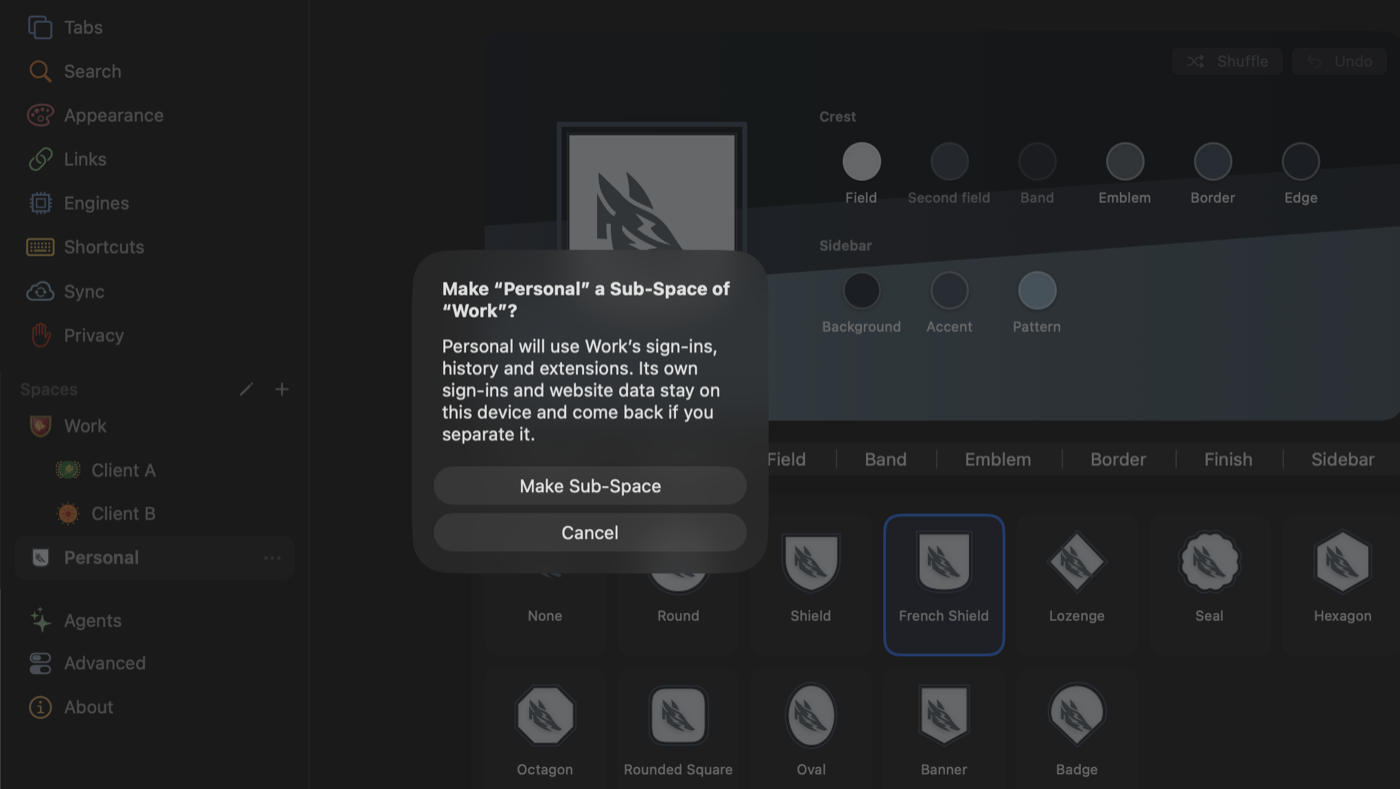
Crest asks first. The Space keeps its tabs and starts using the group's sign-ins, history and extensions. Its own sign-ins and website data stay on this device, unused, and come back if you separate it.
A Space that leads Sub-Spaces can't join another group, and private windows can't have Sub-Spaces.
Switch between Sub-Spaces
Sub-Spaces switch like any other Space. A group's Spaces sit together, primary first, and the Space picker outlines each group. Control-1 through Control-9 select Spaces by position, counting Sub-Spaces.

To move a whole group, drag its primary. On Mac, dragging a Sub-Space among its own group's Sub-Spaces reorders it.
Separate a Sub-Space
Right-click the Sub-Space in the Settings sidebar, or open the … menu on its page, and choose Separate from "Primary"…, or drag it out of its group in the Settings sidebar on Mac. On iPhone and iPad, touch and hold it in Settings → Spaces. The Space keeps its tabs and goes back to its own sign-ins, website data and extensions.
A primary can't be separated. To end a group, separate or delete each of its Sub-Spaces.
Delete a Space in a group
Deleting a Sub-Space deletes its tabs. Its group keeps the sign-ins, history and passwords it shares.
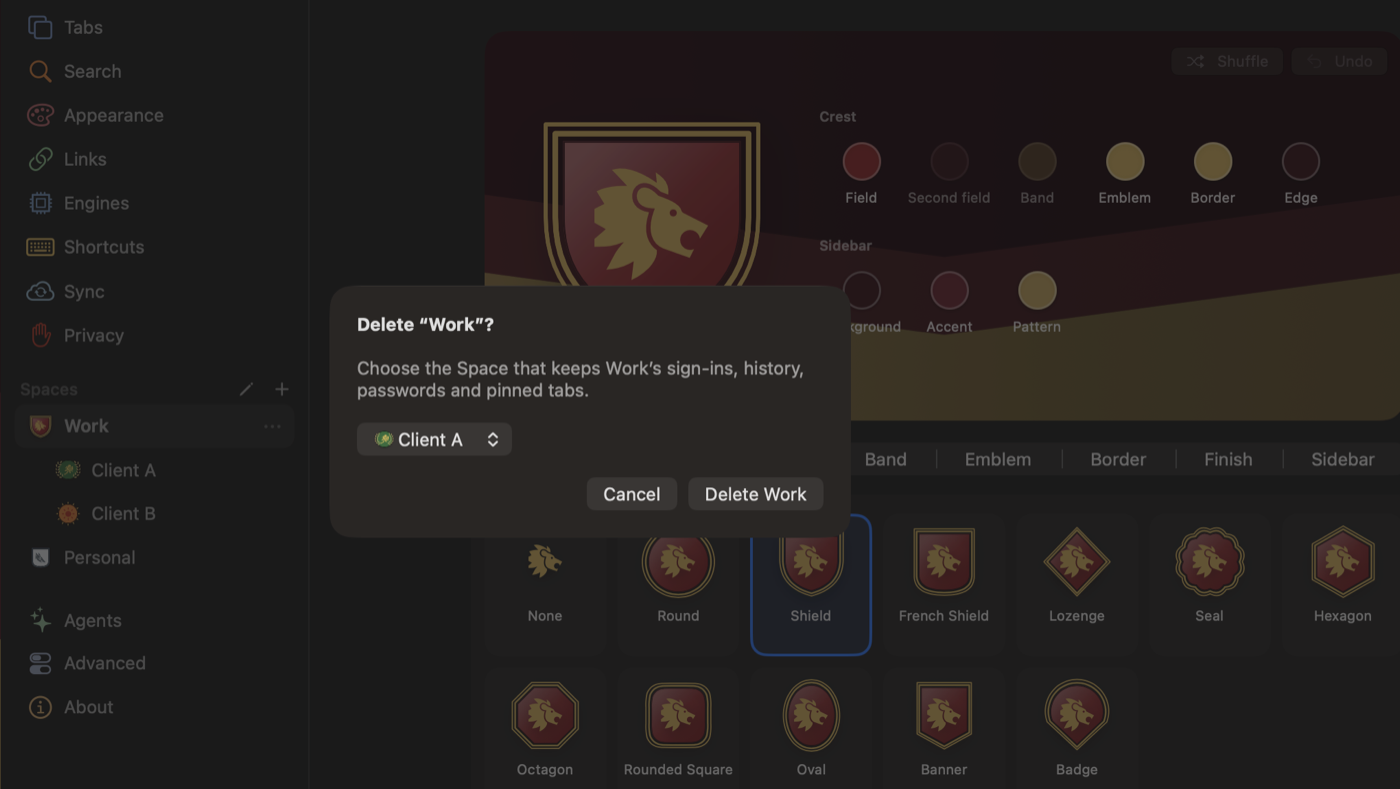
Deleting a primary asks which of its Sub-Spaces keeps the group, with its sign-ins, history, passwords and pinned tabs. To delete everything instead, choose Delete "Primary" and Its Sub-Spaces…. Unlock a locked group before you delete its primary.
Open a page under another account
To open a link with another Space's sign-ins on Mac, right-click it and choose a Space from Open Link in. The page opens in a Quick Window in that Space's session, so you can see the same site under another account. Choose Keep to move it into that Space. Open This Page in in Site Controls does the same for the page you're on. The Spaces of one group are listed together.
Use Sub-Spaces on older devices
Devices that run an earlier version of Crest keep syncing. They show each Sub-Space as a Space on its own, signed out, until they update. The first group you make reminds you to update Crest on your other devices.
Import groups from Arc and Zen
Importing from Arc brings the Spaces of one Arc profile in as one group. Importing from Zen brings each profile's workspaces in as one group. The import review outlines each group and can bring a Space in on its own. See Move your browser data to Crest.